
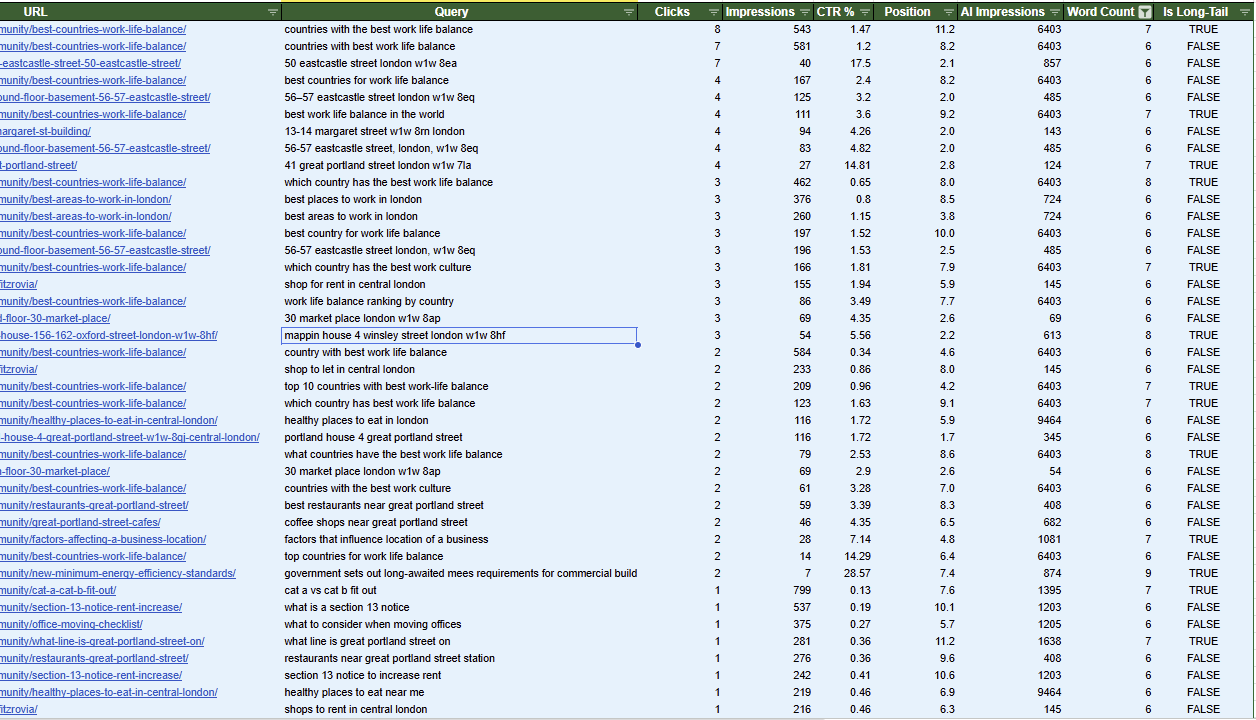
Find Which Search Queries Drive Your AI Impressions
A practical method for SEO practitioners and marketing teams.
What’s inside:
- The problem: Google’s Gen AI report shows URLs but not queries
- The solution: a join method that maps queries to AI-visible URLs
- Two implementation paths: Python script (automated) and Google Sheets (no-code)
- Official Google documentation proving how the data works
- Real-world analysis and what to do with the results
1. The Problem
On June 3, 2026, Google launched dedicated Generative AI performance reports in Search Console. For the first time, site owners can see which URLs appeared in AI Overviews and AI Mode.
But the report has a critical gap: it shows only impressions by URL.
The traditional Performance report gives you all four metrics (Clicks, Impressions, CTR, Average Position) and lets you filter by Query. But it doesn’t tell you which impressions came from AI features specifically.
What each report provides
| Performance Report | Gen AI Report | |
|---|---|---|
| Clicks | Yes | No |
| Impressions | Yes | Yes |
| CTR | Yes | No |
| Average Position | Yes | No |
| Query dimension | Yes | No |
| Page dimension | Yes | Yes |
| Country dimension | Yes | Yes |
| Device dimension | Yes | Yes |
Key fact: the data is a subset, not separate
Google’s official documentation confirms that the Gen AI report is a filtered view of the same data that already exists in the Performance report. Three sources prove this:
Source 1 — Google Search Central Blog (June 3, 2026): Google stated that this data is included in the overall performance report, where it will continue to be tracked to give site owners an overview of their site’s overall visibility in Google Search.
Source 2 — Google’s AI Features documentation: Sites appearing in AI features (such as AI Overviews and AI Mode) are included in the overall search traffic in Search Console — specifically reported in the Performance report, within the ‘Web’ search type.
Source 3 — Google’s documentation changelog: Google clarified that AI Overviews are counted and logged in the Performance report. This was a documentation clarification on methodology only, not a change in Search Console reports.
ℹ️ This means a URL appearing only in AI Overviews (not in organic blue links) still gets its impression counted in both reports. They are the same impression, not additive.
2. The Method
Since the Gen AI report gives us confirmed AI URLs and the Performance report gives us query-URL pairs, we join them on URL. Every query tied to a Gen AI URL is a candidate query that may have triggered the AI impression.
How it works
- Step 1: Get the list of URLs that appeared in Generative AI features (from the Gen AI report).
- Step 2: Get all query + page pairs from the traditional Performance report (same date range).
- Step 3: Join on URL — keep only the queries whose page matches a Gen AI URL.
- Step 4: Flag long-tail queries (7+ words) as the most likely real AI interactions.
- Step 5: Prioritise by AI impressions and traditional position for optimization opportunities.
Why 7+ words?
Short queries (2–3 words) are typically navigational or broad. Queries with 7 or more words resemble how people actually interact with AI — full questions, comparisons, multi-part requests. Examples from real data:
- “what is the advantage of choosing a vertically integrated apparel manufacturer” (11 words)
- “explain sustainable fashion principles by comparing them to fast fashion” (10 words)
- “night market da nang near dragon bridge” (7 words)
The threshold is configurable — use what fits your data.
How this differs from the regex method
Some practitioners filter the Performance report with regex for question words (“what”, “how”, “why”) and long queries to approximate AI queries. The difference:
- Regex gives false positives. A 10-word question query might never trigger AI for your site. This method only surfaces queries tied to URLs that actually appeared in AI features.
- Regex misses short AI triggers. “Rayon fabric” is 2 words with no question word — regex skips it. But the data shows it got 23,197 AI impressions.
- This method has a known gap too. The join is indirect — “this URL appeared in AI” + “this URL ranks for this query” doesn’t prove that specific query triggered that specific AI impression. It’s directional, not exact.
Use this method as the primary approach, regex as a quick cross-check.
3. Option A: Python Script (Automated)
Best for: teams managing multiple properties, anyone comfortable with command line, scaling across 10+ sites.
Prerequisites
- Python 3.10+ installed on your machine
- A Google Cloud Platform account
- Access to Google Search Console for the target properties
Step 1: Install Python dependencies
Open your terminal (PowerShell on Windows, Terminal on Mac) and run:
pip install google-api-python-client google-auth-oauthlib pandas openpyxlStep 2: Create GCP project and OAuth credentials
- 2a. Go to console.cloud.google.com
- 2b. Create a new project (or select an existing one)
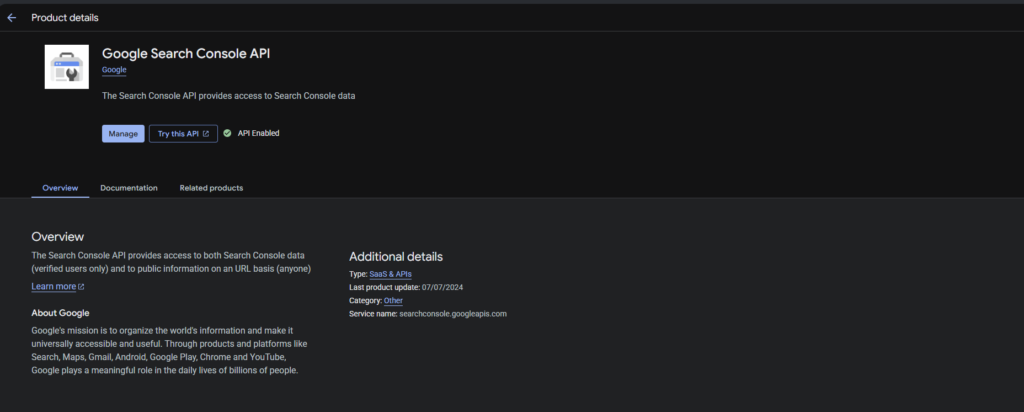
- 2c. Enable the Search Console API: go to APIs & Services → Library → search “Google Search Console API” → click Enable
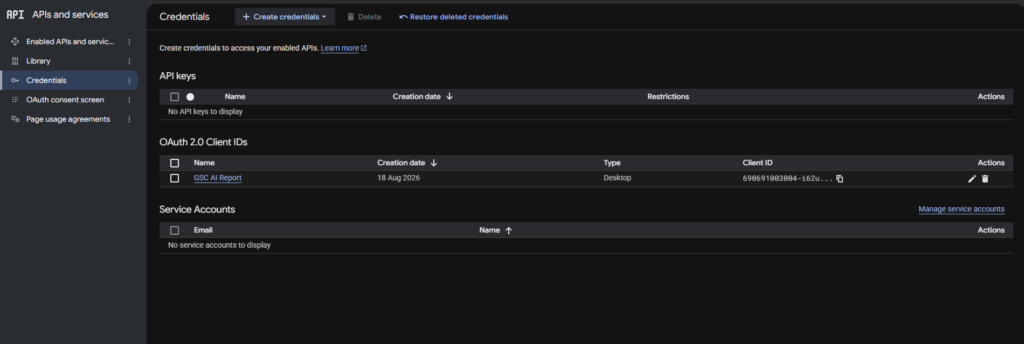
- 2d. Create OAuth credentials: APIs & Services → Credentials → + Create Credentials → OAuth client ID → Application type: Desktop app → Create
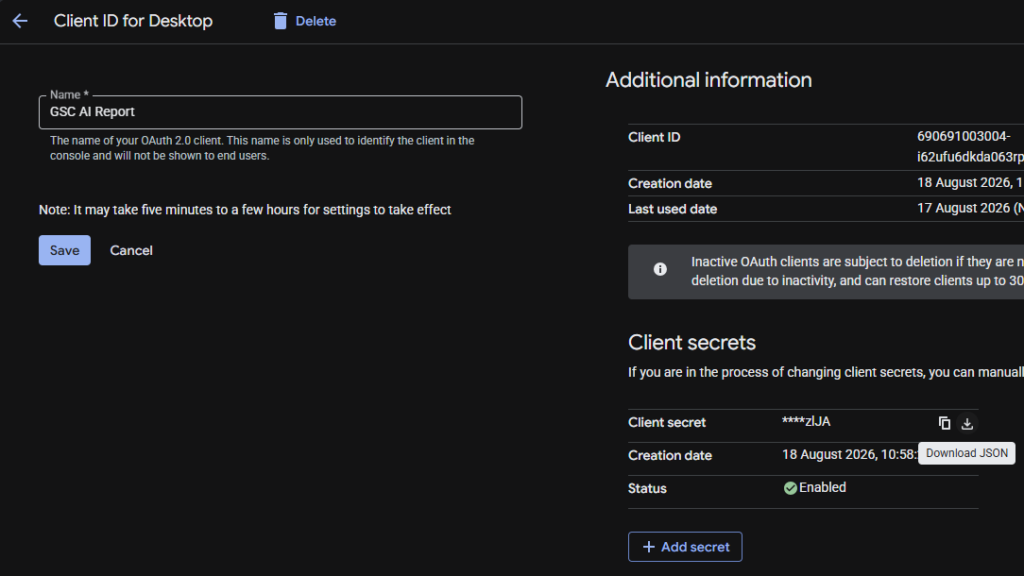
- 2e. Download the JSON file → rename it to
credentials.json
Step 3: Add yourself as a test user
- 3a. Go to APIs & Services → OAuth consent screen
- 3b. Fill in required fields (app name, support email)
- 3c. Under Test users, click + Add Users → add the Google account that has GSC access
Step 4: Set up the script
Create a folder (e.g. C:\gsc on Windows). Place credentials.json and the Python script (gsc_ai_matcher.py) in this folder.
Step 5: Run it
cd C:\gsc
python gsc_ai_matcher.py --site "https://example.com/" \
  --ai-report "path/to/exported-genai-report.xlsx" \
  --days 90 --output "example_genai_queries.xlsx"
First run opens a browser to authorise. After that, the token is cached.
ℹ️ If you manage multiple Google accounts (personal vs agency), use separate folders with separate credentials.json files. Delete token.json when switching accounts.
Script parameters
| Parameter | Description |
|---|---|
--site | GSC property URL. Use sc-domain:example.com for domain properties or https://www.example.com/ for URL-prefix (trailing slash matters) |
--ai-report | Path to the Gen AI report exported from GSC UI |
--days | Lookback period in days (default: 28). Use 90 for broader analysis |
--min-words | Minimum words for long-tail flag (default: 3, recommended: 7) |
--output | Output filename. Use different names per property to avoid overwriting |
Output structure
The script produces one .xlsx file per property with these sheets:
- All Queries: Every query matched to a Gen AI URL, with both Gen AI and traditional metrics.
- Long-Tail Only: Filtered to queries meeting the min-words threshold.
- URL Summary: One row per Gen AI URL — query count, total clicks, average position.
4. Option B: Google Sheets (No-Code)
Download Template: genai_query_mapper_template
Best for: team members unfamiliar with Python, one-off analysis, sharing results via Google Sheets.
Step 1: Install Search Analytics for Sheets
- 1a. Open any Google Sheet
- 1b. Go to Extensions → Add-ons → Get add-ons
- 1c. Search for “Search Analytics for Sheets”
- 1d. Install and grant access to your GSC data
Free version works. No payment needed for this workflow.
Step 2: Export Gen AI URLs from GSC
- 2a. Open Google Search Console → select your property
- 2b. Go to Performance → Generative AI (Search) report
- 2c. Set your date range (e.g. last 90 days)
- 2d. Click the Pages tab in the table
- 2e. Click Export → download as CSV or Google Sheets
- 2f. Copy the URL and Impressions columns into the ‘① Gen AI URLs’ sheet in the template
Step 3: Pull query+page data with the add-on
- 3a. In Google Sheets, go to Extensions → Search Analytics for Sheets → Open sidebar
- 3b. Select the same property as Step 2
- 3c. Set the same date range
- 3d. Group by: select BOTH ‘Query’ AND ‘Page’ — this is the critical step
- 3e. Leave Row limit blank (the add-on pulls all available rows, no 1000 cap)
- 3f. Click Request Data
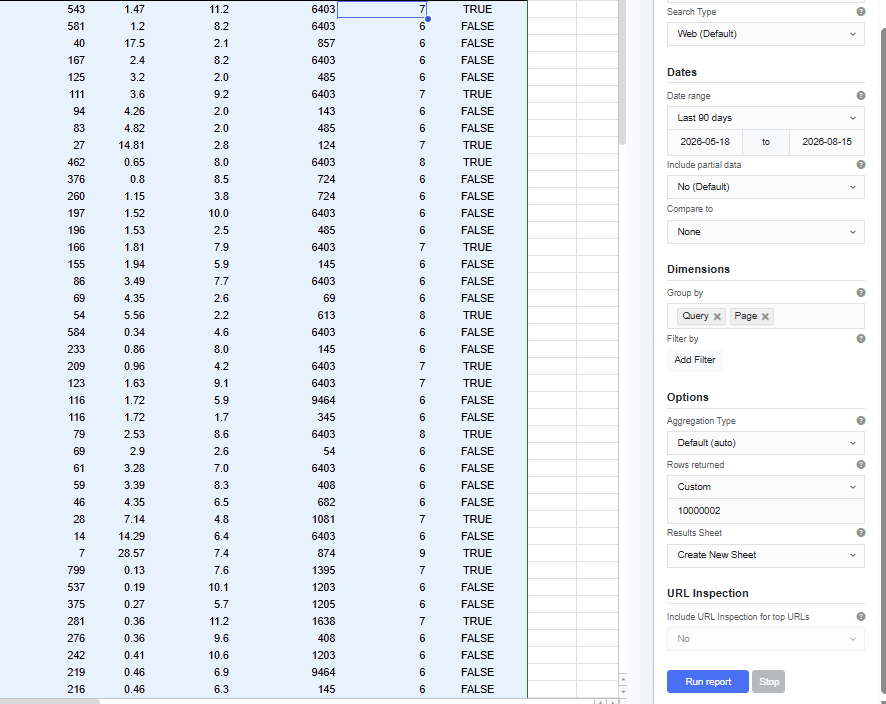
- 3g. Copy all data from the new sheet into the ‘② Query+Page Data’ sheet
Step 4: Check the results
Go to the ‘③ Matched Queries’ sheet. The formulas automatically:
- Match each query’s URL against the Gen AI URL list (VLOOKUP)
- Pull AI Impressions for each matched URL
- Count words per query
- Flag queries as long-tail if they meet the threshold in cell B1 (default: 7)
Filter the ‘Is Long-Tail’ column to TRUE. Sort by AI Impressions descending.
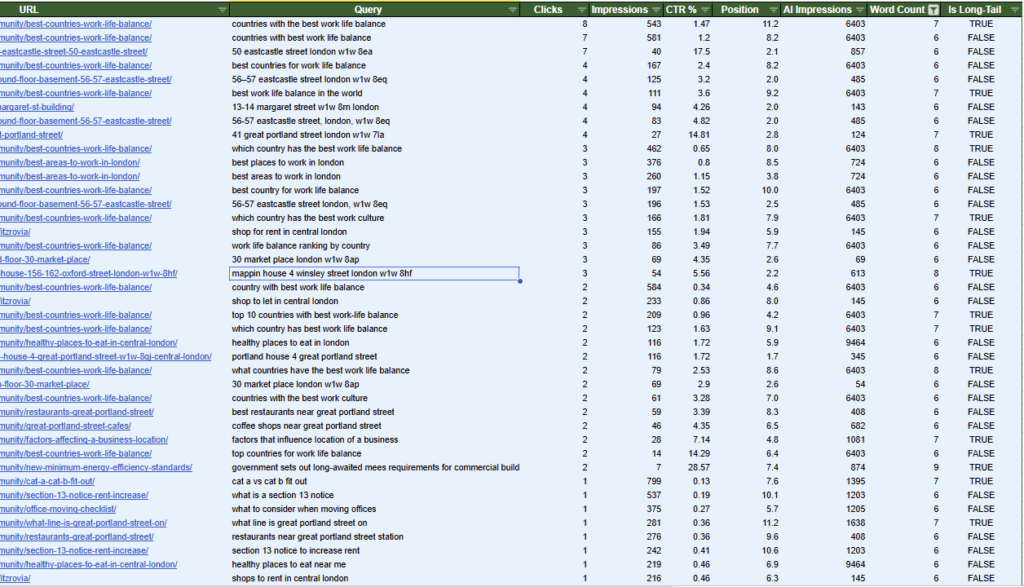
ℹ️ The template pre-fills 2000 formula rows. If your query+page export has more than 2000 rows, drag the formulas down to cover all rows.
5. What to Do with the Data
Verify accuracy
The join is a proxy, not proof. Validate it:
- Manual spot-check: Take 10–15 high-impression query-URL pairs, search them in Google, check if an AI Overview appears with your URL cited.
- Cross-reference with third-party tools: Match queries against AI citation tracking tools.
- Track over time: Run monthly. Persistent query-URL pairs = high confidence. One-off appearances = noise.
Identify citation gaps
The most actionable pattern: URLs with high AI impressions but zero or near-zero clicks from long-tail queries. Google is using your content as source material but not sending traffic. These pages are being extracted from, not cited.
To fix this: audit the page content against the actual AI answer for those queries. Find what the AI includes that your page doesn’t — that’s your gap. Add the missing information so the AI needs to cite rather than summarise.
Prioritise content upgrades
- Position 5–20 + high AI impressions: Google considers your content relevant but not authoritative enough for the primary answer. These are the highest-ROI pages to improve.
- Zero clicks + high impressions: Users got the answer from the AI without visiting your site. Add unique data, proprietary insights, or interactive elements the AI can’t replicate.
- Long-tail diversity: URLs mapped to many different long-tail queries are topically broad. Consider splitting into focused pieces that each own a specific problem pattern.
Client reporting
For agencies managing multiple properties, this data tells a clear story: “Your content appeared in X Generative AI results, driven by Y unique queries across Z pages. Here are the queries where you’re being used as a source but not receiving traffic — and here’s what we’re doing about it.”
6. Real-World Findings
Analysis of two properties (90-day window) revealed consistent patterns:
The headline number
97–98% of 7+ word queries matched to Gen AI URLs produced zero clicks. Google’s AI is consuming the content as source material and answering users directly.
Query pattern types (7+ words)
The queries that map to AI-visible URLs cluster into predictable patterns: what/which questions, how-to queries, comparison queries (“vs”, “difference between”), and best/top queries. For hospitality sites, “near me” queries with distance modifiers (“within 0.2 mi”) dominated but represent local intent, not genuine AI content consumption — filter these out for cleaner signal.
The CTR baseline
1–2% CTR on 7+ word queries tied to Gen AI URLs is the baseline. Track this monthly. The goal is to move it up by making pages citation-worthy (unique data, explicit facts, structured claims) rather than extraction-worthy (generic information the AI can summarise and discard the source).
7. Official Google Documentation
Every claim in this document is grounded in official Google sources:
- Generative AI Performance Report (Search): support.google.com/webmasters/answer/16984139
- AI Features and Your Website: developers.google.com/search/docs/appearance/ai-features
- Introducing Search Generative AI performance reports: developers.google.com/search/blog/2026/06/gen-ai-performance-reports
- What are impressions, position, and clicks: support.google.com/webmasters/answer/7042828
- Latest Documentation Updates: developers.google.com/search/updates
8. Downloads & Resources
- Python script (gsc_ai_matcher.py): Included as a separate file. Place it in a folder with
credentials.jsonand run from command line. - Google Sheets template (genai_query_mapper_template.xlsx): Included as a separate file. Upload to Google Sheets and follow the Instructions tab.
If you have problem with my website’s font, find the raw docx file here.