
Search Tracker is a browser extension that lets you inspect a ChatGPT conversation’s prompts, answers, exposed search queries, citations and sources. Run a prompt as usual, then click the extension icon to open the details in a new tab.
You can use it for a quick look or save conversations into projects for later research. No project setup is needed to get started.
Why it’s useful
ChatGPT may use several search queries to answer one prompt. These are often called fan-out queries. Seeing the exposed queries can help you understand how a question was turned into searches, which websites appeared, and which pages were cited.
If you work on SEO or AI visibility, you can use this evidence to investigate when a brand or website appears. You can also save new responses over time and compare them. A single response is one example, not a reliable ranking or proof of why ChatGPT recommended someone.
Install it
Download Search Tracker v0.5.1
- Extract the ZIP into a folder you’ll keep on your computer.
- Open
chrome://extensions, turn on Developer mode, and click Load unpacked. - Select the extracted folder containing
manifest.json. - Pin Search Tracker from Chrome’s Extensions menu. Refresh ChatGPT once before running your next prompt.
This download is installed manually. When updating, replace the files in the same folder and click Reload on the extension’s card.
Run a prompt, then inspect it
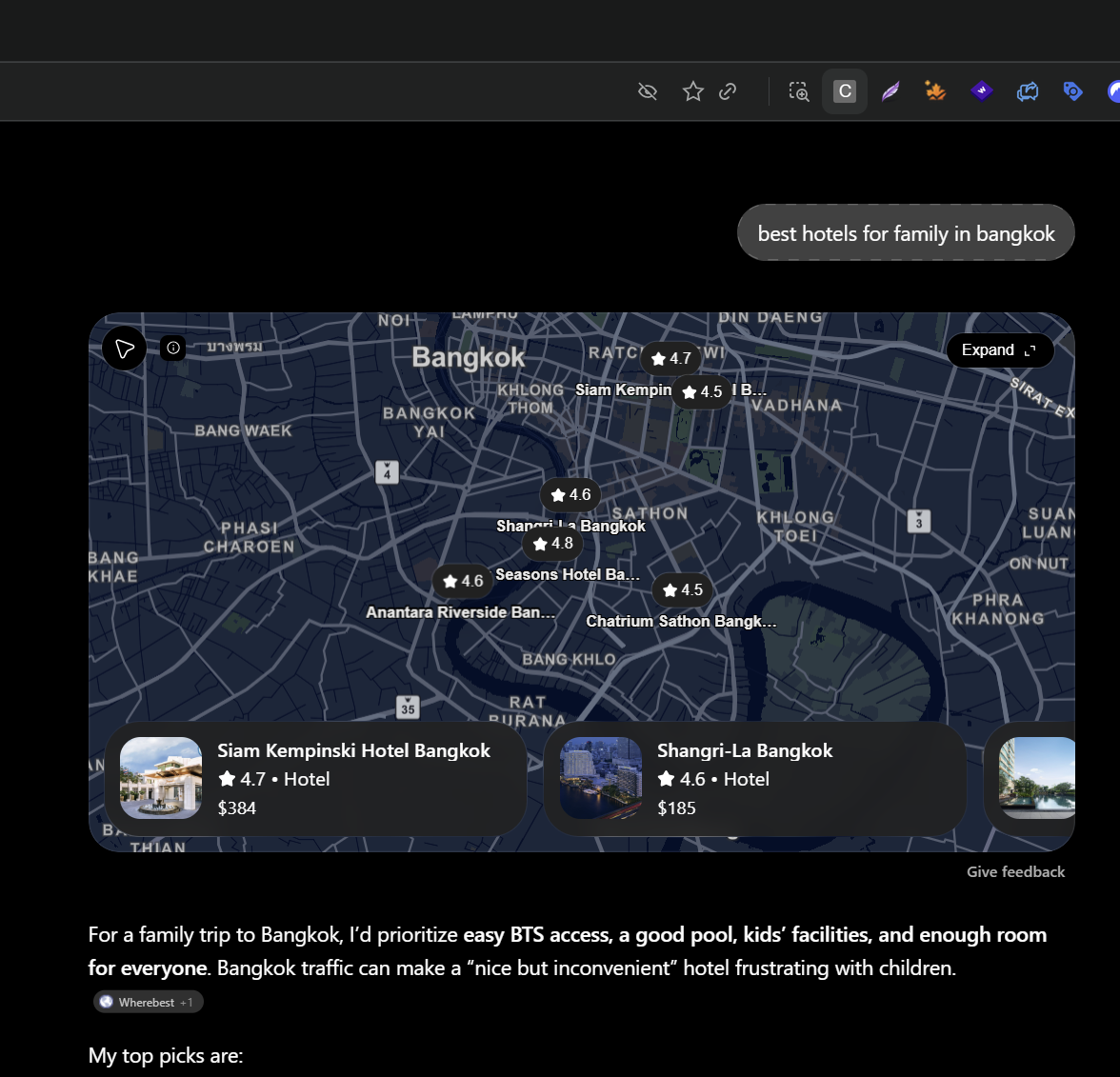
Open ChatGPT, submit your prompt and wait for the response to finish. Click the Search Tracker icon while you’re on that conversation.
The details tab separates Fan-out Queries, Citations, Search Sources, Prompts and Answers. Use the search box to find a particular name, domain or query.
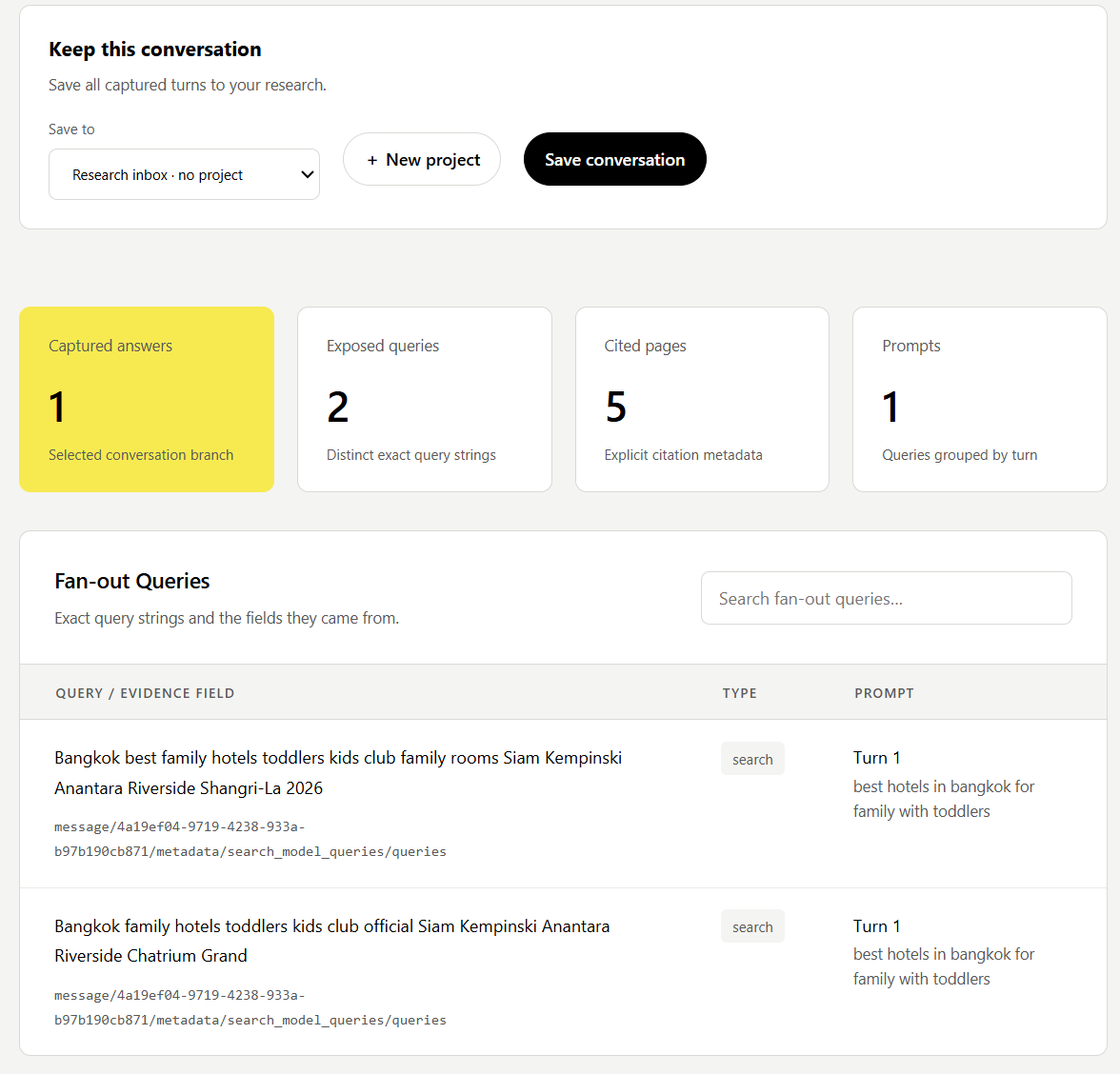
Fan-out Queries lists the captured search strings and the prompt they belong to.
Open Citations to review linked pages identified in the response’s citation metadata. Search Sources lists retrieved pages; a page appearing there does not necessarily mean it was cited in the answer.
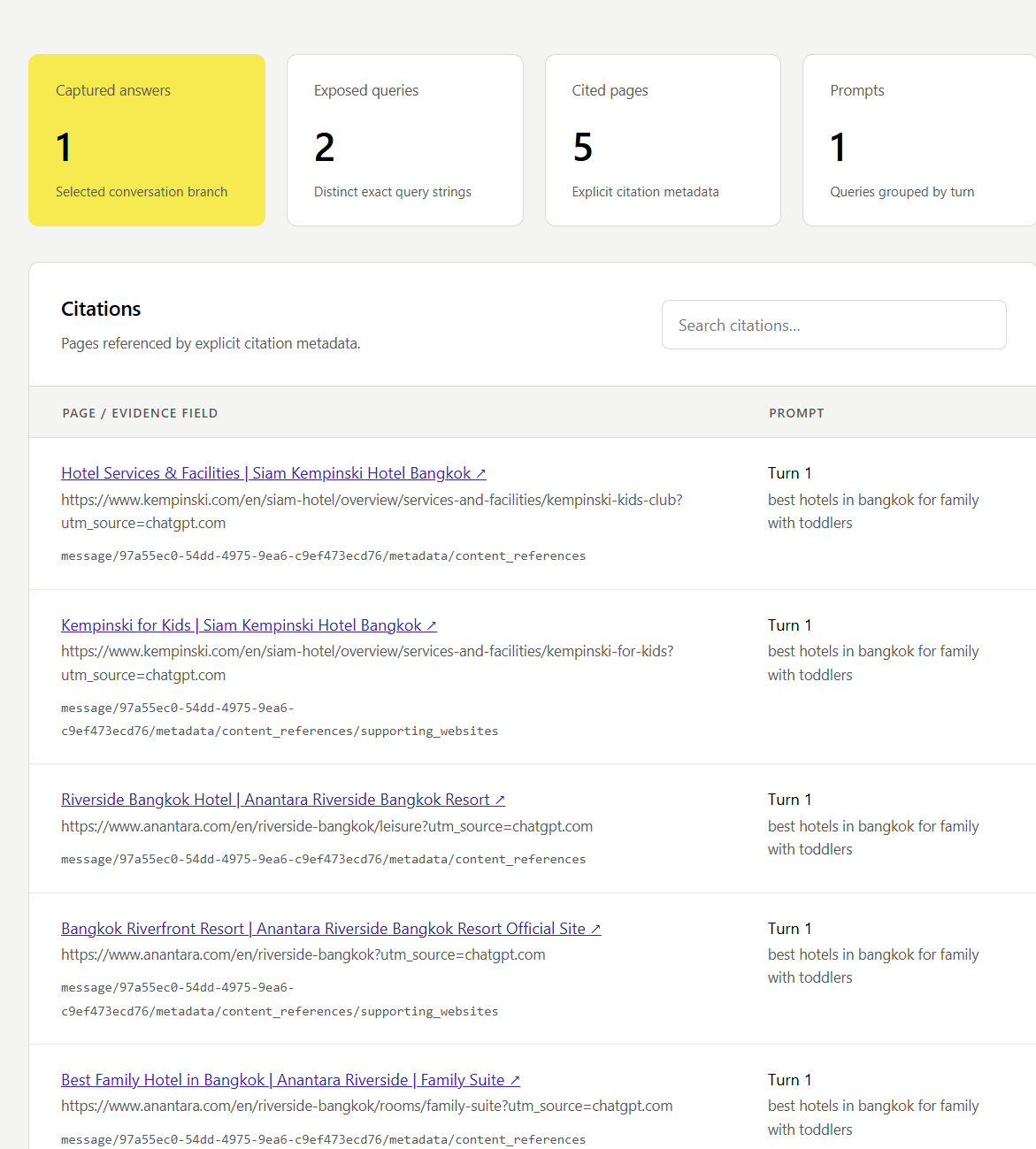
Open a citation to read the source and check it yourself.
Save what you want to keep
Choose a project under Save to, or select Research inbox if you don’t need a project. Click Save conversation. You can create a project from the same screen.
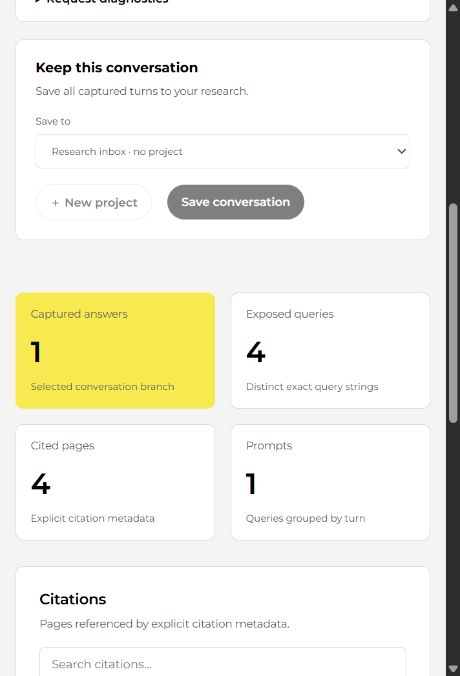
Saving is optional. These screenshots show an imported conversation in the web preview, where the save controls are disabled. Saving is available in the installed extension.
Use Open saved research to return to your saved conversations. For comparisons across days, run and save new answers each day. Saving the same answer again updates its existing record; it doesn’t create another daily result.
Temporary chats and a few limits
Temporary chats use the same workflow. Inspect them before reloading or closing the ChatGPT tab, because their live capture can be lost. If you choose to save one, its local copy remains after the temporary chat closes.
The extension captures supported search data that ChatGPT exposes. It cannot guarantee every query, recover every older response, or reveal ChatGPT’s private reasoning. An empty query list doesn’t prove no search happened. ChatGPT changes may also require extension updates.
Saved research stays in your browser’s local extension storage. There’s no cloud sync or automatic prompt runner. Export a backup before uninstalling the extension or clearing its data.